Why doesn't the PHD2 Link Button work?
Why doesn't the PHD2 Link Button work?
If you encounter the following error when attempting to connect to PHD2 using its link button: "Windows cannot find '...\phd2.exe'. Make sure you typed the name correctly, and then try again.", this may indicate a misconfiguration of the PHD2 folder paths in HelioMaker. Please reopen the PHD2 Configuration in HelioMaker and enter the correct installation path of the custom version of PHD2 required by HelioMaker. For more details, please refer to the PHD2 Configuration section.
If you encounter an issue where the PHD2 link button remains red, and after waiting long enough, PHD2 appears to load but fails to connect, consider the following potential causes and solutions:
-
PHD2 Server Disabled
The PHD2 server must be enabled for HelioMaker to connect successfully. If the server is disabled, HelioMaker will be unable to establish a connection. To resolve this, open PHD2 and ensure that the Enable Server option is checked in the Tools menu.
-
Incorrect PHD2 Version:
HelioMaker requires a customized version of PHD2, specifically designed to support its advanced features. If you have not installed or configured this custom version and are using the standard PHD2 version, HelioMaker may silently fail to connect or display an error message.
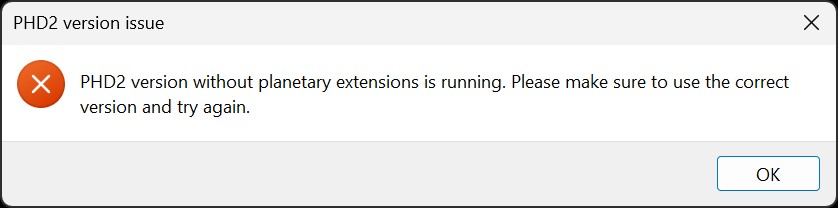
To resolve this issue, install the correct version of PHD2 as specified in the Installation and Prerequisites section and configure it according to the PHD2 Configuration instructions.
-
PHD2 Equipment Connectivity Problem:
HelioMaker's connection to PHD2 depends on PHD2 successfully connecting to the equipment profile defined in HelioMaker's PHD2 configuration. If PHD2 encounters an error or times out while attempting to connect to your physical gear (e.g., camera or mount), HelioMaker may fail to establish a full connection with PHD2, and the link button will remain red, indicating a failed connection.
In this case, try reconnecting by pressing the link button in HelioMaker again. If the connection still fails, switch to PHD2 and troubleshoot any issues with its connection to your physical gear. Ensure that the camera and mount are properly connected, configured, and functioning within PHD2.
-
PHD2 Instance Number Mismatch:
If a customized PHD2 version has been launched externally by the user using a Windows shortcut configured with an instance number (via the
-ioption in the command line) that differs from the instance number defined in HelioMaker's PHD2 configuration, the connection between the two programs may fail. This can sometimes result in an error message or a silent failure.To resolve this issue, you can either:
- Close the running instance of PHD2 and use the link button in HelioMaker to launch a new instance with the correct instance number.
- Close the running instance of PHD2 and ensure that the instance number in the PHD2 shortcut matches the PHD2 instance value set in HelioMaker's PHD2 configuration. Then, use HelioMaker's Link button to launch and connect to PHD2.
Note: Changing instance numbers will impact existing PHD2 equipment profiles, as each instance number maintains its own unique set of profiles and global settings, including the internal window layout. If you choose to change the instance numbers, ensure you reconfigure the equipment profiles accordingly.
-
Equipment Profile Mismatch:
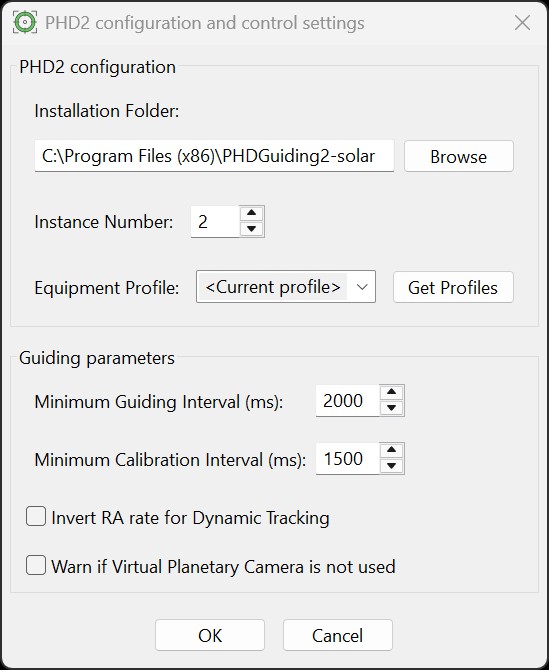
HelioMaker requires a valid PHD2 equipment profile to be selected in its PHD2 Configuration settings.
To resolve this issue, synchronize the PHD2 equipment profiles with HelioMaker by opening the PHD2 Configuration dialog in HelioMaker. Click the Get Profiles button and select the desired profile. This updates HelioMaker's profile list to match the profiles defined in PHD2, ensuring that HelioMaker can use a valid equipment profile when connecting via the Link button.
The PHD2 Configuration dialog can be accessed via the gears button or through the Setup menu in HelioMaker.
-
Equipment Profile Issue Due to Standard PHD2 Version:
Sometimes, if you accidentally open the standard PHD2 version and use an equipment profile previously configured by the custom version, the standard PHD2 may fail to recognize the Virtual Planetary Camera and remove it from the profile. Subsequently, when you use HelioMaker to open and link with the custom PHD2 version, the equipment profile will be invalid, missing the proper reference to the Virtual Planetary Camera, causing the connection to fail.
To resolve this issue, open a running instance of the custom PHD2 version and manually reconfigure its equipment profile to include the Virtual Planetary Camera. Once this step is completed, HelioMaker should be able to connect successfully.
-
Intermittent Network or Timing Issues:
On rare occasions, due to internal network errors or timing issues, HelioMaker may fail to connect to PHD2 on the first connection attempt. In such cases, try clicking the Link button again to establish the connection. If the issue persists, please refer to the other possible reasons listed below for further troubleshooting.
-
Firewall and Port Configuration:
HelioMaker communicates with other applications over specific network ports. If port access is blocked by your firewall or is being used by another application, the connection may fail. To resolve this:
- In HelioMaker's Advanced Settings, change the base port number, then restart HelioMaker, PHD2, and SharpCap Pro.
- Ensure that HelioMaker is granted access to the port in your Windows firewall settings. Add an exception for HelioMaker if necessary.
If the issue persists after attempting the above solutions, consider reaching out to HelioMaker support or consulting the user communities for further assistance.